In Finite Element Analysis (FEA), the load type defines where the force actually goes in the model. Choosing the wrong load type means applying the wrong physics — no matter how good the mesh or solver is. This guide explains how body, nodal, and elemental loads work in SDC Verifier, how to set them up, define direction, and avoid common setup mistakes.
Body Loads: These act upon every element within the model simultaneously. They are used to simulate global phenomena such as gravity, rotational accelerations, or temperature changes.
Nodal Loads: Forces or moments applied specifically to nodes. These allow for precise, localized load application where external forces interface with the structure.
Elemental Loads: Forces applied to element faces or specific property groups. These include pressures on plate elements or environmental loads.
Using nodal forces instead of a body acceleration can omit model mass and distort inertia response. For example, attempting to simulate a global acceleration event using a series of nodal forces rather than a Body Load often misses secondary steel mass. This results in non-conservative data that fails to capture the true inertial response of the structure, can under-predict inertia loads, miss mass, and give non-conservative stresses.
Categorization and Real-World Contexts
Strategic modeling requires matching the load type to the physical environment to ensure structural integrity assessments are both accurate.
Load Category
Specific Type
Real-World Application
Body Loads
Acceleration/Gravity
Simulating self-weight or linear g-forces across the entire structural mass.
Body Loads
Rotational Acceleration
Modeling the rate of change in angular velocity for machinery or rotating platforms.
Body Loads
Rotational Velocity
Capturing centripetal acceleration and the resulting radial forces.
Elemental Loads
Pressure
Applying uniform or variable forcesnormal toelement faces, such as hydrostatic pressure.
Elemental Loads
Wind Loads
Applyingpressures to beam properties based on height-dependent variables and direction.
Body loads apply acceleration to all elements; use them for gravity/inertia. In complex offshore or industrial structures, manual force application often overlooks the inertial contribution of small members. Global acceleration loads automate this, ensuring the utilization factors reflect the true physics of the global move.
SDC Verifier Workflow: Step-by-Step Setup
Setting up loads in SDC Verifier is a hierarchical process. Loads are defined under Model → FEM Loads and then assembled into Job → Individual Loads.
1. Open FEM Loads
Expand Model → right-click FEM Loads → Add → choose load type.
Image: Selecting Load type
2. Add a Body Load (Acceleration)
Tick the Active checkbox for Acceleration/Gravity before entering values. Add Body Loads, enter a title, activate Acceleration/Gravity, set direction value, click OK. Coordinate System: leave Default (Basic Rectangular) unless you intentionally use another.
Image: Adding Body load
3. Add a Nodal Load
Entity selection → Add → pick nodes → OK.
Image: Selecting Nodes
4. Choose Nodal Load Type
Select Force (or another type), name the load.
Image: Selecting Force
5. Define Direction
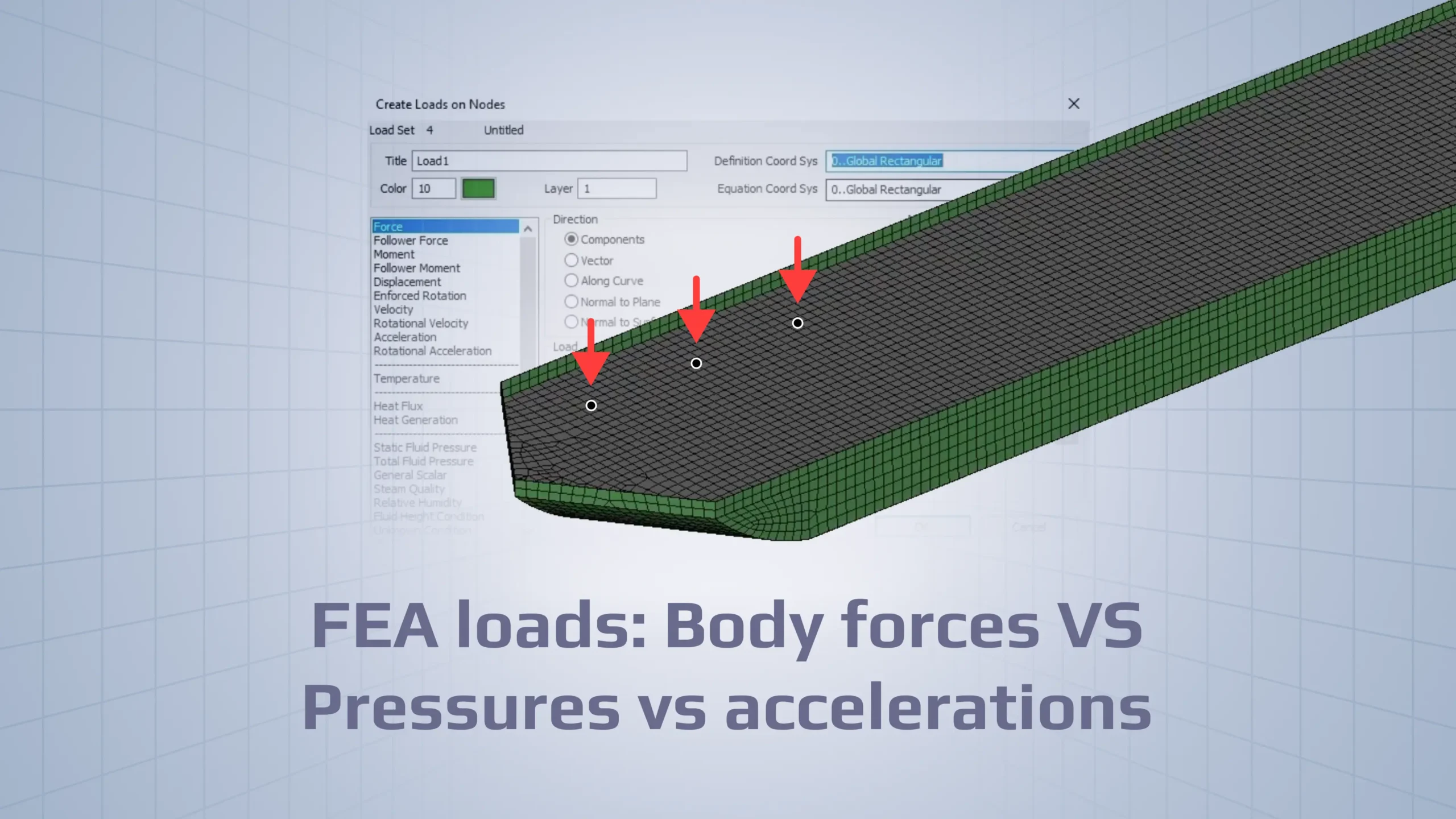
Choose a “Direction” method: Components, Vector, Along Curve, Normal to Plane, or Normal to Surface. If using the Components method, enter the load values for each direction (e.g., Values: “100 100 -1000”).
For Vector, Along Curve, Normal to Plane, Normal to Surface: click “Specify” button to define direction geometry. Definition Coord Sys appears when Direction method = Components.
Image: Entered values for the load
6. Apply Force Values
Enter force components and confirm with OK.
7. Add an Elemental Load
Select from the list of titled entities → choose Property 10 (example) → OK → Preview.
Image: Adding Elemental load
8. Select Elemental Load Type
Choose Pressure, set direction and value, click OK.
Use Components only when direction is constant in one CS.
Use Normal to Surface when load must stay normal across curved geometry.
Confirm direction settings (coord sys + direction method) before solving; after solving, check deformation direction.
Then go to analysis:
Visual Direction Check: If your setup allows previewing load vectors/pressure direction, use it. This confirms that pressures are “Normal to Element Face”, and nodal forces are pointing in the intended global or local direction.
Coordinate System Rule:
Definition Coordinate System controls how direction components are interpreted when using the Components method.
Equation Coordinate System is used only when Method = Variable (equations) and, by default, follows the currently active model coordinate system.
Validation step: Confirm which coordinate system is active before entering components. If the load direction or sign flips unexpectedly, the load is being interpreted in a different coordinate system than intended.
Contour Plot Verification: After solving (see related tutorial)’ box with that video link — or delete for strict script alignment.
Checks that don’t require extra tools:
Units check: N vs kN, Pa vs MPa, mm vs m.
Reaction balance: sum reactions ≈ sum applied forces (and moments).
Mass check for body loads: total mass in model is reasonable; inertia force ≈ m⋅a.
Symmetry check: if geometry/BC symmetric, results symmetric.
Deformed shape check: direction makes sense (push → moves away, gravity → sag).
Load direction check: pressure normal outward vs inward; nodal force arrow direction.
Structural failures often stem from a mismatch between the engineer’s intent and the software’s logic.
The “Active System” Trap: Confusing the “Definition Coord Sys” with the “Equation Coord Sys.” By default, the Equation system aligns with the active coordinate system in the model, which can lead to forces being applied in the wrong direction if the engineer assumes it automatically follows the Definition system.
Selection Scope Errors: After assigning a load by Property, always use Preview to confirm the highlighted elements match your modeling intent. Verify that the correct property was selected and not a similarly named one (e.g., Property 10 instead of Property 1).
Mesh Continuity Failure: Forgetting to use the “Coincident Nodes“ command after reflecting a model. Without merging nodes, the loads will not transfer across the connection lines, leading to localized “flying” members and incorrect results. Related: mesh reflect tutorial.
Direction Method Mismatch: Using the “Components” method for curved surfaces (like tanks) where “Normal to Surface” is required to maintain accuracy across the geometry.
Inactive Load Terms: Entering values into the Body Loads menu but failing to check the “Active” box, resulting in an analysis that ignores those forces entirely [1].
These mistakes lead to massive downstream inefficiencies. Wrong loads can drive wrong design decisions.
For the full workflow (jobs, combinations, solving, post-processing), see tutorial to understand FEM loads better:
Conclusion
Revised Conclusion
Choosing the right load type in FEA is about putting forces into the model the way they exist in real life. In SDC Verifier, use Body Loads for global effects like gravity and accelerations acting on the whole structure, Nodal Loads for forces or moments applied at specific points, and Elemental Loads for pressures applied to element faces.
Before you solve anything, confirm three things: the correct load type, the direction method (Components vs geometry-based direction), and the coordinate system used to interpret that direction. Then assemble your FEM loads into Individual Loads in the Job tree so they can be calculated consistently.
If your setup is wrong, the solver can still run and produce clean-looking plots — but those results won’t represent the physics you intended.