Beam cross-sections matter in FEA because a beam element does not “know” your real 3D shape unless you define it correctly. Two things control whether a beam behaves the way you expect:
The section definition (how the cross-section geometry is represented and assigned).
The section orientation (how the section axes are aligned relative to the global system and to the beam’s local axes).
If either is wrong, the model may still mesh and solve, but the response can be misleading. In practice, many “wrong results” come from a rotated section axis, an incorrectly imprinted section, or skipping the visual validation step.
What “A Beam Cross-Section” Means in Beam FEA Models
In a 1D beam model, the cross-section is attached to a line (the beam centerline). The solver uses the section definition and axes to interpret how the beam resists loads.
Key idea: you are not meshing the solid cross-section. You are assigning section behavior to a 1D element. That’s why the same centerline can behave differently if the section axes are rotated.
Step-by-Step: Create a Custom Beam Cross-Section from a Property
The SDC Verifier workflow below builds a custom cross-section as a surface, imprints internal holes, assigns it as aGeneral Section, and then meshes a beam line with this section.
1. Building the Base Section Geometry
Defining Points and Surfaces
Image: SDC Verifier interface, stating points and surfaces for geometry preparation
To begin, you must establish the basic geometryof the custom property using the Geometry tab. Starting with a point at the coordinates (0,0,0), you can define a rectangular shape by creating subsequent points; for instance, a second point at 0.1 in the X direction. It is important to note that the software operates in a Meter/Kg/Second unit system.
To improve the process, you can use the Copy section to duplicate points along with a specific vector. Once the points are placed, for example, at 0.5 meters along the Y-axis to form a rectangle, you create a Surface by selecting the corners. To ensure the surface is modeled correctly, you must Snap to point and select them in a continuous loop rather than cross-clicking.
Image: Ready surface in SDC Verifier interface
2. Customizing the Cross-Section
Setting the Workplane and Adding Holes
Once the surface is modeled, you need to define a Workplane in the global coordinate system (XY, YZ, or ZX) to imprint internal features like holes. By snapping the workplane to the corners of your existing surface, you ensure your geometry creation is in the correct plane.
Image: Adding the circle in the surface to make a hole
To add holes, you can create a circle at the center of the surface, for a 0.5m by 0.1m rectangle; this would be at X=0.05 and Y=0.25. After defining the radius (e.g., 0.03m), you can use the Copy section for curves to create repetitions. Utilizing the “Previous command” is a powerful way to quickly repeat circles in both positive and negative directions along the Y-axis. Finally, use the Project function to imprint these curves onto the surface and delete the internal circular surfaces to leave the desired holes.
Image: Added holes on the surface
3. Assigning Properties and Materials
Defining Beam Properties and Steel Material
With the geometry finalized, you must add a 1D Property to the model. In the Property settings, select Beam as the element type and provide a descriptive name, such as “Rectangle 0.1×0.5 with 5 holes”.
Image: Adding property to the model (beam)
If not already defined, you must create a Material. For example, a standard Steel material can be defined with the following parameters:
Young’s Modulus: 210e9
Poisson’s Ratio: 0.33
Mass Density: 7850
A custom section must have its axis orientation defined relative to the global system.
Define the section Y-axis direction to align with the global Y direction (example uses X = 0, Y = 1).
Why this matters: a section that is rotated relative to the beam’s local axes can change which way the beam is “strong” and “weak” in the model. The mesh will still exist, but the behavior can be wrong.
4. Meshing and Visualization
Applying the Custom Property to a Line
The final step is to apply this custom cross-section to a beam model. First, create a line in the Curve section to represent the beam (e.g., a line extending 10 meters in the Z direction).
Image: Adding a line in the Curve section
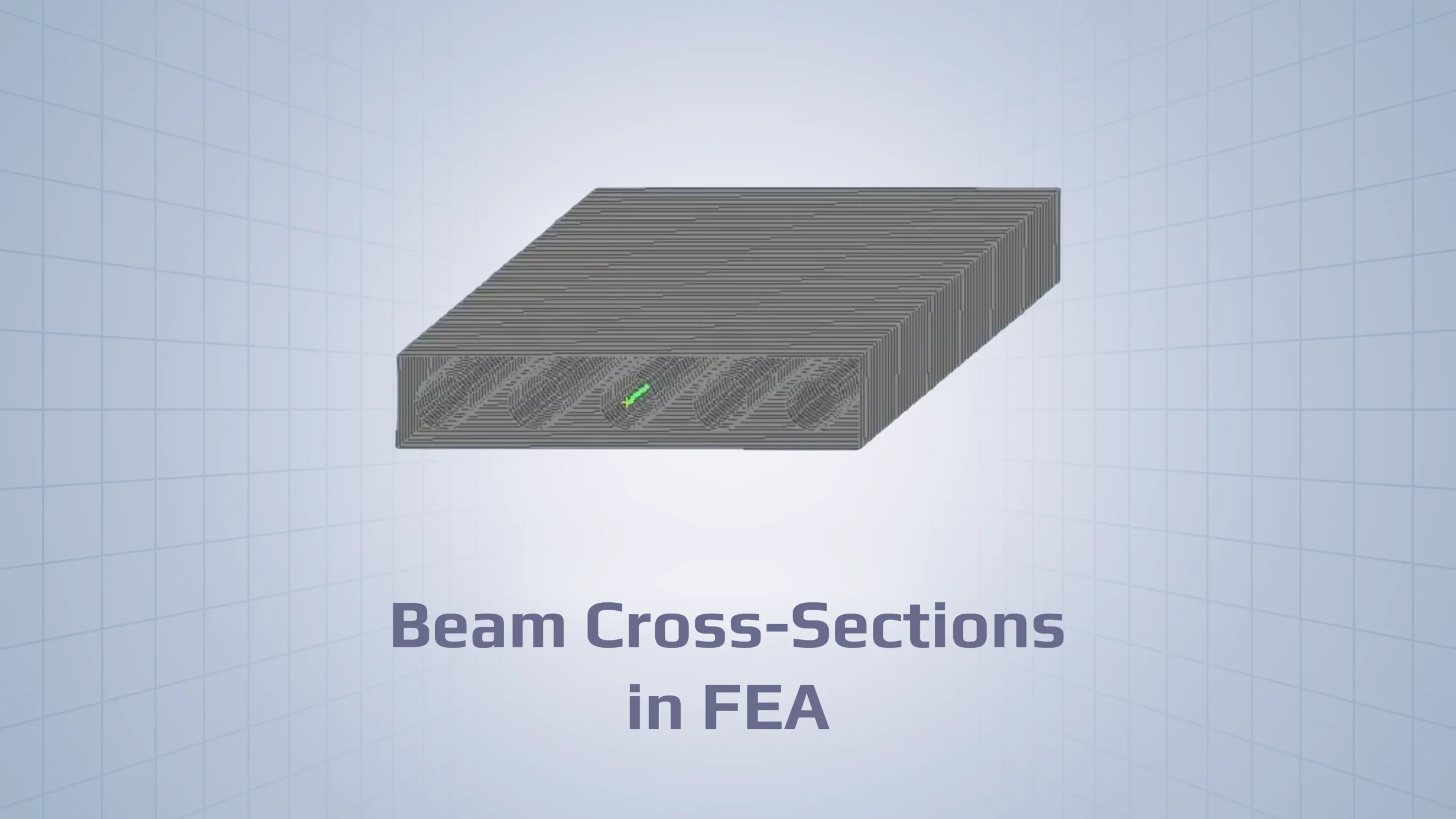
Navigate to Mesh – Geometry – Curve, select the line, and assign the custom property you just defined. Once the beam is meshed and the Thickness view is turned on, you will be able to see the full cross-section of the beam, complete with its custom holes and dimensions, in the graphical interface.
Custom beam cross-sections in FEA are defined by geometry + axis orientation. The workflow above helps you create a section from a custom property, imprint holes, assign it as a General Section, and mesh it onto a beam line.
The engineering takeaway is simple: always define axes deliberately and always validate the section visually (Thickness view) before interpreting strength check results.