Hydrostatic pressure is one of the most common, and most frequently misunderstood, load types in structural FEA. Unlike point or uniform loads, fluid pressure varies continuously with depth and depends on several interacting parameters: fluid density, gravity direction, and the defined fill level or waterline. A small setup mistake can easily result in pressure acting in the wrong direction, on the wrong faces, or at the wrong magnitude, often without obvious warning signs in the solver output.
This article is a practical guide to hydrostatic tank loads in FEA, focused on how to set them up and verify them in SDC Verifier.
What is Hydrostatic Tank Load in FEA?
A hydrostatic tank load represents the pressure exerted by a contained fluid on tank structures. This pressure depends on the fluid density (ρ), gravitational acceleration (g), and the vertical distance from the defined waterline (h), and it increases linearly with depth according to p = ρ · g · h.
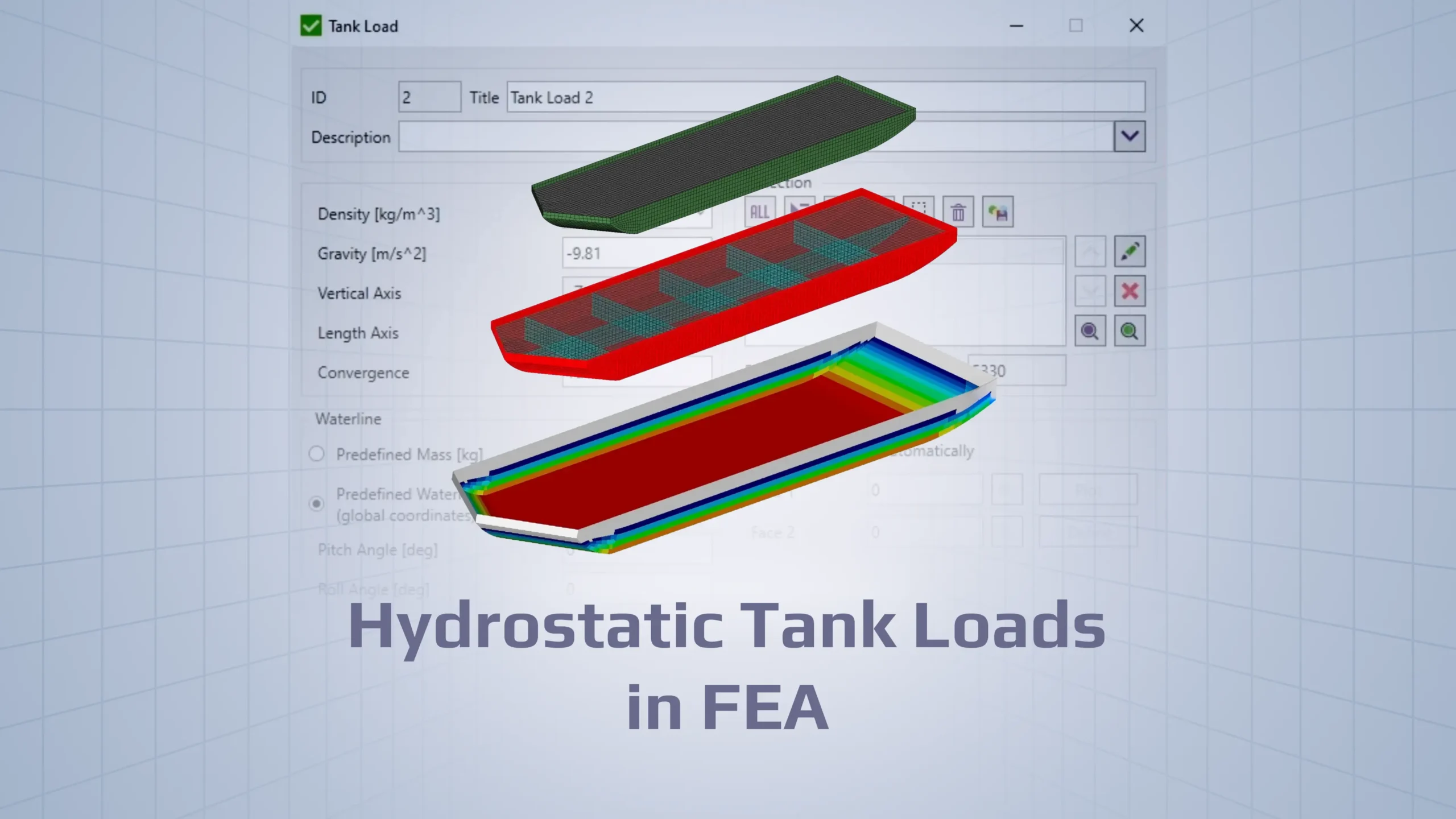
In SDC Verifier, structural analysis software, the Tank Load feature automates this process by calculating the hydrostatic pressure field and applying it directly to the selected tank plate elements. The tool applies pressure to plate faces, so correct results depend on proper face orientation and a fully connected mesh. After defining the load, verification is required to ensure that pressure is applied on the inside of the tank and that it increases correctly with depth.
Image: Model of Tank structure
Common Applications
Accurately modeling tank loads is critical in industries where fluid containment is a primary design consideration. The structural response of a vessel to the weight and pressure of its contents must be thoroughly understood to ensure safety and operational reliability.
Based on the tool’s parameters, such as the definition of a “longitudinal axis of the ship,” a primary application is in marine engineering. This functionality is essential for simulating various loading conditions that a vessel might experience. Applying these loads correctly requires a clear, step-by-step workflow to ensure the simulation accurately reflects real-world conditions.
Basic Workflow in SDC Verifier
The process of setting up a hydrostatic tank load is a structured procedure that involves defining the fluid properties, specifying the fill level, and identifying the structural components that form the tank. SDC Verifier provides a dedicated interface to guide the engineer through these steps, ensuring all necessary parameters are considered.
See the whole process in the video:
Here is the step-by-step guide to configuring a Tank Load:
1. Initiate Tank Load In the model tree, navigate to the FEM loads section, right-click, and select add tank load to open the configuration window.
Image: Choosing Tank Load option in SDC Verifier
2. Define Fluid & Environmental Parameters Specify the key physical properties of the simulation environment:
◦ Density: The density of the fluid inside the tank (e.g., water).
◦ Gravity: The acceleration due to gravity. A default value is provided but can be edited.
◦ Vertical axis: The global axis that defines the direction of gravity and fluid depth.
◦ Length axis: The longitudinal axis of the structure, particularly relevant for ship models.
◦ Convergence: An accuracy setting for the balancing calculation when the waterline is determined using a predefined mass.
3. Set the Waterline (Fill Level) There are two primary methods for defining the fluid level inside the tank:
◦ Automatic: The waterline is calculated based on a predefined mass of the fluid. If the mass is set to zero in this mode, the software will use the model’s mass for the calculation. Pitch and roll angles are calculated automatically with this method.
◦ Predefined: With the predefined waterline option, you can set the waterline level in global coordinates and define pitch and roll angles.
Image: Selecting Predefined Waterline option
4. Select Tank Elements In the selection section, press the add condition button to open the entity selection dialog. Use this to select all the plate elements that constitute the walls of the tank. Use Preview to confirm you selected all plates that form the tank interior
Image: Adding Properties condition
5. Generate and Review the Load After all parameters and selections are defined, pressing “Ok” will create the load and add it to the FEM loads section in the model tree.
Image: Preview of the model
Creating the load is only the first part of the process. Verifying its correct application is the most critical step to ensure the simulation produces trustworthy and accurate results.
How to Sanity-Check Your Results
Result verification is not an optional final step but a mandatory part of a rigorous engineering process. Without performing basic sanity checks, a simulation can produce plausible but dangerously incorrect data stemming from simple setup errors. SDC Verifier includes built-in visualization tools to help engineers confirm that the load has been applied as intended.
To access these tools, you must first enter the load’s edit mode. This is done by right-clicking the created tank load in the model tree and selecting edit.
Key Verification Techniques
Plot faces (Face 1/Face 2): To confirm which side of the plate elements the pressure has been applied to, first uncheck the calculate faces automatically option and then press plot. This renders the element faces by their normal direction: blue for Face 1 (positive normal) and red for Face 2 (negative normal). This visual check is the most direct way to ensure the pressure is being applied inside the tank, not outside.
Image: Comparing Face 1 and Face 2
Plot Pressure: To visualize the pressure distribution, use the plot pressure button. This generates a pressure contour plot directly on the model, showing the pressure gradient. This check allows you to immediately confirm that the pressure correctly increases with depth, matching the principles of hydrostatics. Pressure plots are available in Edit mode.
At the waterline, pressure should be ~0 (gauge).
At the deepest point, pressure should be close to ρ·g·h.
Image: Added plot pressure
Performing these verification steps is the primary method for catching and correcting the most common setup mistakes before running a full analysis.
Faces: Face selection shows pressure inward (Face 1/Face 2 correct).
Gradient: Pressure increases linearly with depth.
Zero at waterline: ~0 gauge pressure at waterline.
Max value: Bottom pressure ≈ ρ·g·h.
Common Mistakes and How to Avoid Them
Before analysis, check: (1) mesh connectivity, (2) faces point inward, (3) pressure increases with depth.
While powerful, FEA tools require careful model preparation and setup. A flawless simulation workflow is built on a foundation of a clean mesh and a rigorous verification process. The most common failures arise when a modeling error is allowed to go undetected due to a procedural shortcut.
The primary technical failure mode for the Tank Load tool is an unconnected mesh. The algorithm that automatically determines the “inside” of the tank requires a perfectly connected mesh (no gaps/disconnected plates). If there are gaps or disconnected elements between the plates, the software cannot correctly identify the enclosed volume. The consequence is that pressure may be applied to the wrong side of some elements or even to the exterior of the tank.
This technical error becomes a critical simulation failure when it is compounded by a process error: trusting automatic selections blindly. Assuming the software’s automatic selections are correct without verification is a significant risk. To resolve an issue caused by an unconnected mesh, uncheck the calculate faces automatically option in the load’s edit mode; this allows you to modify the faces manually. After disabling automatic face calculation, assign the correct face for the affected elements (so pressure acts inward). However, the best practice is to always use the Plot Face IDs and Plot Pressure tools to visually confirm the load’s application, catching any potential issues before running the full analysis.
Conclusion
Hydrostatic tank loads may appear straightforward, but in FEA they demand careful definition and systematic verification. Pressuremagnitude, direction, and application surface all depend on correct fluid properties, waterline definition, and a clean, connected mesh. When any of these inputs are wrong, the analysis can still run — but the results may be fundamentally incorrect. SDC Verifier simplifies the creation of hydrostatic loads by automatically calculating pressure distributions and applying them to the internal faces of tank plate elements.